Dragon
Assess & Enhance, together in your slicer.
Assess simulates your print to reveal defects before you press Print. Enhance then optimizes your settings for speed, strength, and reliability. Use them together to go from “will this work?” to a faster, better print.
Assess
FREESee issues before printing
Simulates your print to reveal defects early.
See issues before printing
Simulates your print to reveal defects early.
- Engineering-grade 3D print diagnosis made simple with 1 click
- Totally free to run, in seconds, in your slicer
- Compatible with 36+ materials and 11+ printers in the Bambu Lab ecosystem
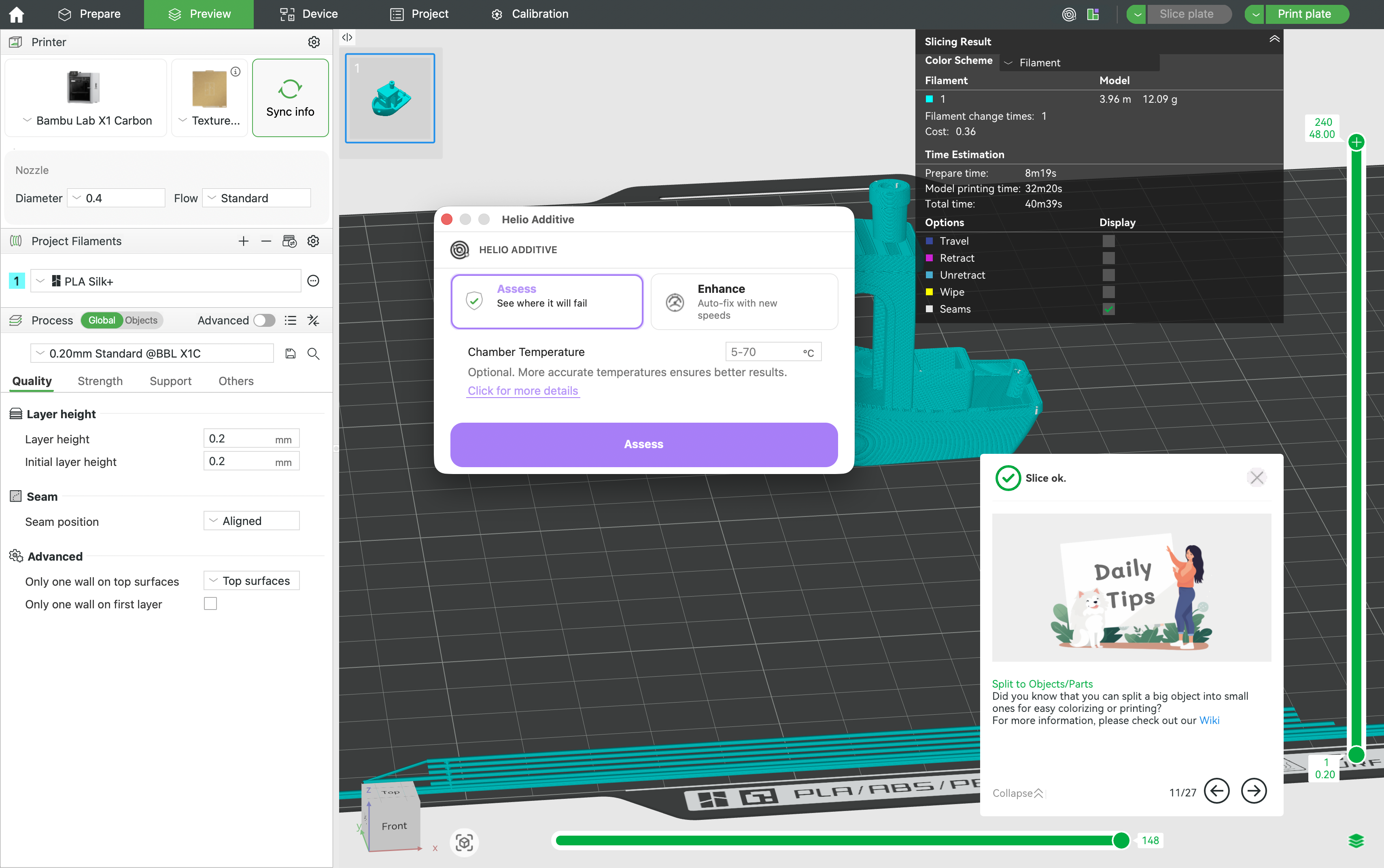
- Run a free Printability Report before you press Print (seconds, not hours).
- Spot overheating vs overcooling risk so you know what to change—without guesswork.
- Compare “what‑ifs” (fan, speed, temps) with clearer go/no‑go confidence.
- Fewer failed prints (especially long jobs)
- Less warping & distortion
- Stronger layer bonding (avoid brittle/cold layers)
- Cleaner bridges & overhangs
- Step 1Slice as usual in Bambu Studio
- Step 2Then run Assess (make it a habit) → get a Printability Report + risk map
- Step 3Apply one targeted change, then re‑run Assess to confirm the fix
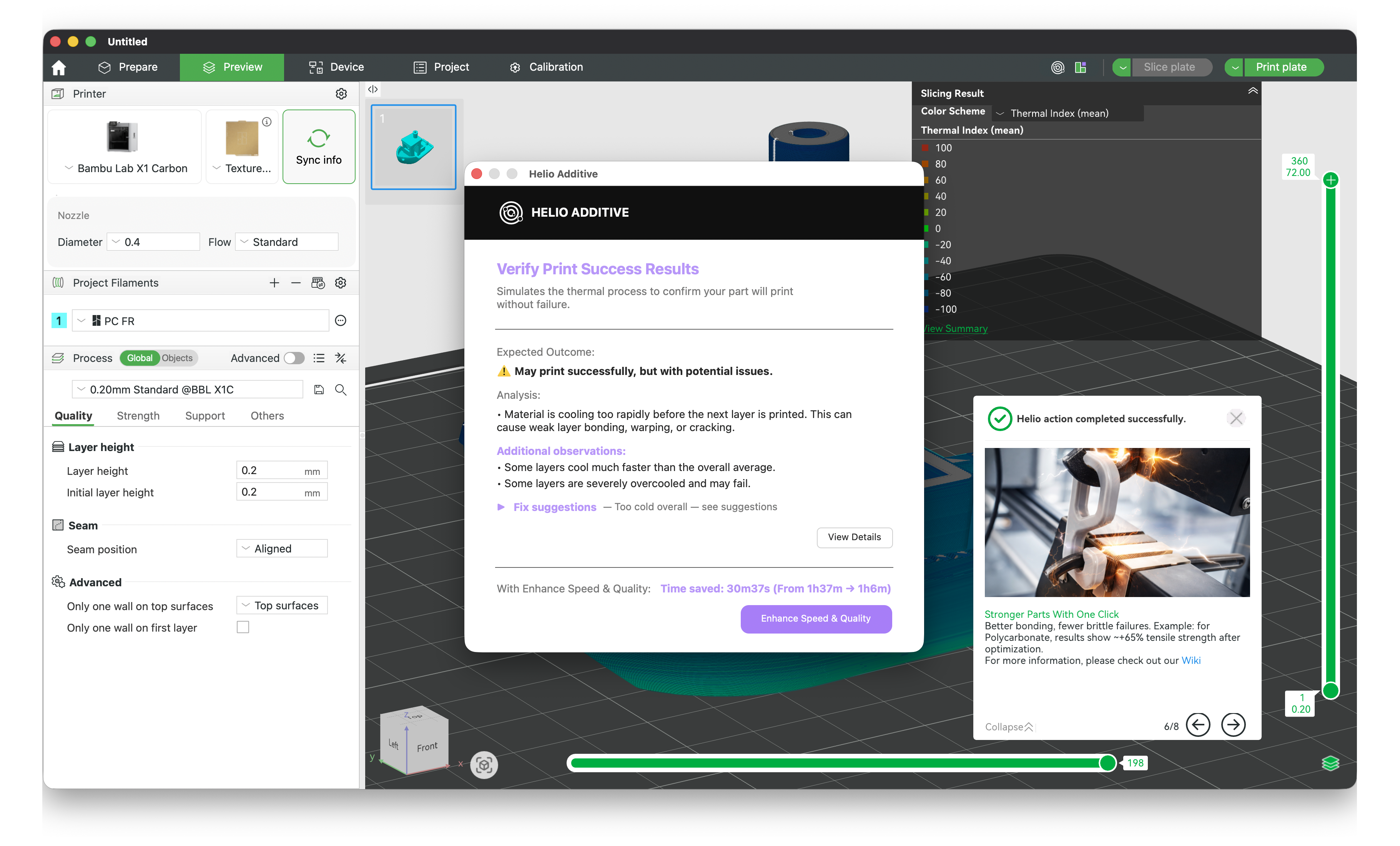
Clear Assess Reports With Pass / Risk Verdicts
Every Assess now delivers a simple, actionable report that tells you if a print will succeed — and how to improve it if not.
Know if it will work — before you hit print.
Diagnose faster with a guided checklist
When Assess flags thermal risk, you usually need just a few targeted tweaks. Use this wizard to decide what to try next based on whether you’re overheating (red) or overcooling (blue).
- Run Assess and note the TQI color (red vs blue).
- Answer the quick questions (fan limits, speed limits, where the issue is).
- Apply one change at a time, then re-run Assess to confirm improvement.
Enhance
From $9.99/moSmarter settings, better prints
Automatically optimizes speed, strength, and reliability.
Smarter settings, better prints
Automatically optimizes speed, strength, and reliability.
- 10–40% 3D print speed improvement in minutes
- Automatically optimizes speed, strength, and reliability
- Personal $9.99/mo (non-commercial) • Commercial $29.99/mo (no cap)
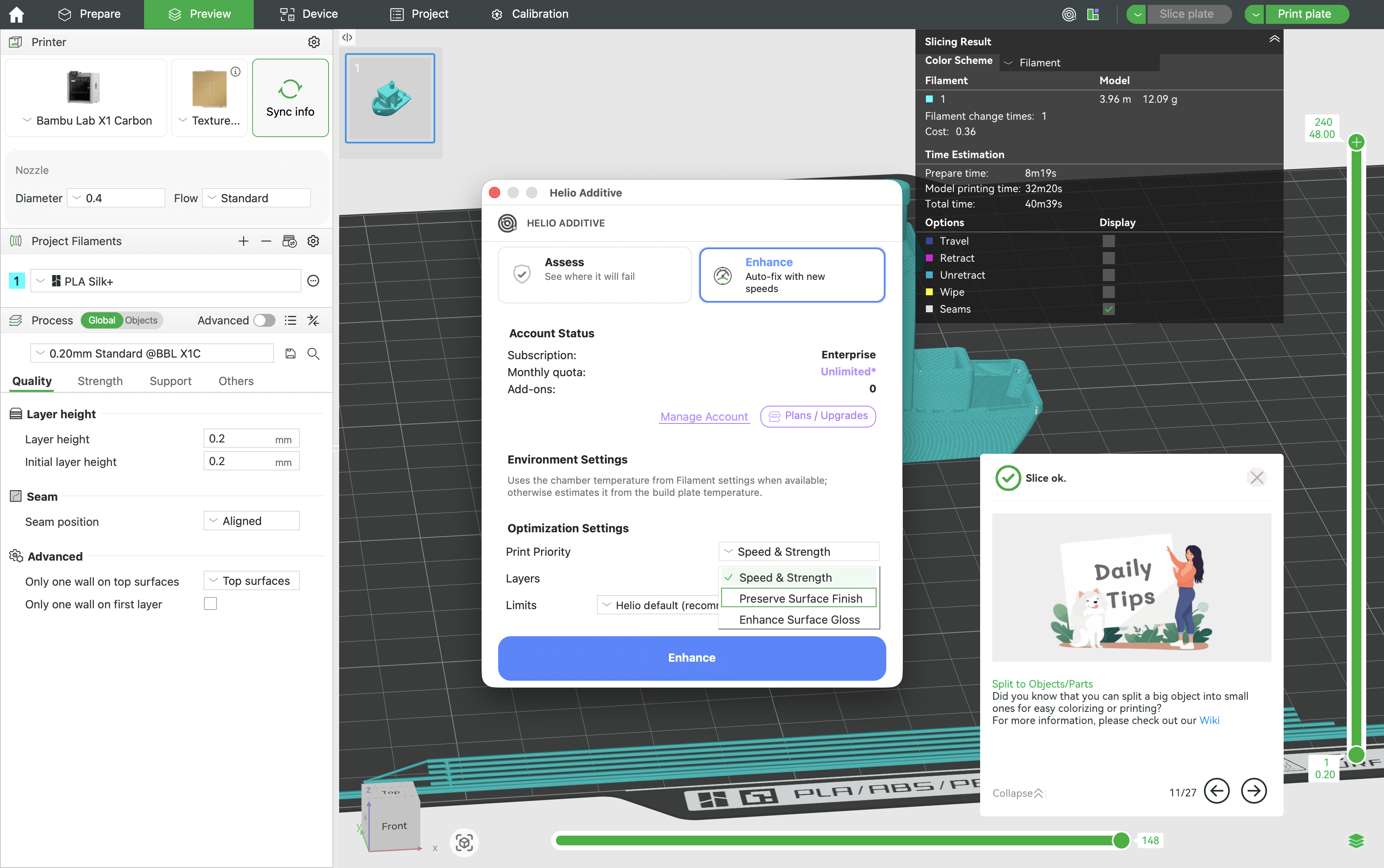
- One‑click optimization that balances speed, strength, and reliability automatically.
- Turns “faster” into “faster *and* safe”—by shaping layer‑time behavior across the part.
- Makes advanced materials more repeatable with stable, consistent settings.
- 10–40% faster print times (typical range)
- More consistent strength / bonding
- Less waste from reruns and tuning loops
- More reliable advanced materials
- Higher throughput for teams & farms
- Step 1Slice as usual in Bambu Studio
- Step 2Then run Enhance (make it a habit) → Helio generates tuned settings for your goal
- Step 3Print with fewer reruns (and validate with Assess when needed)
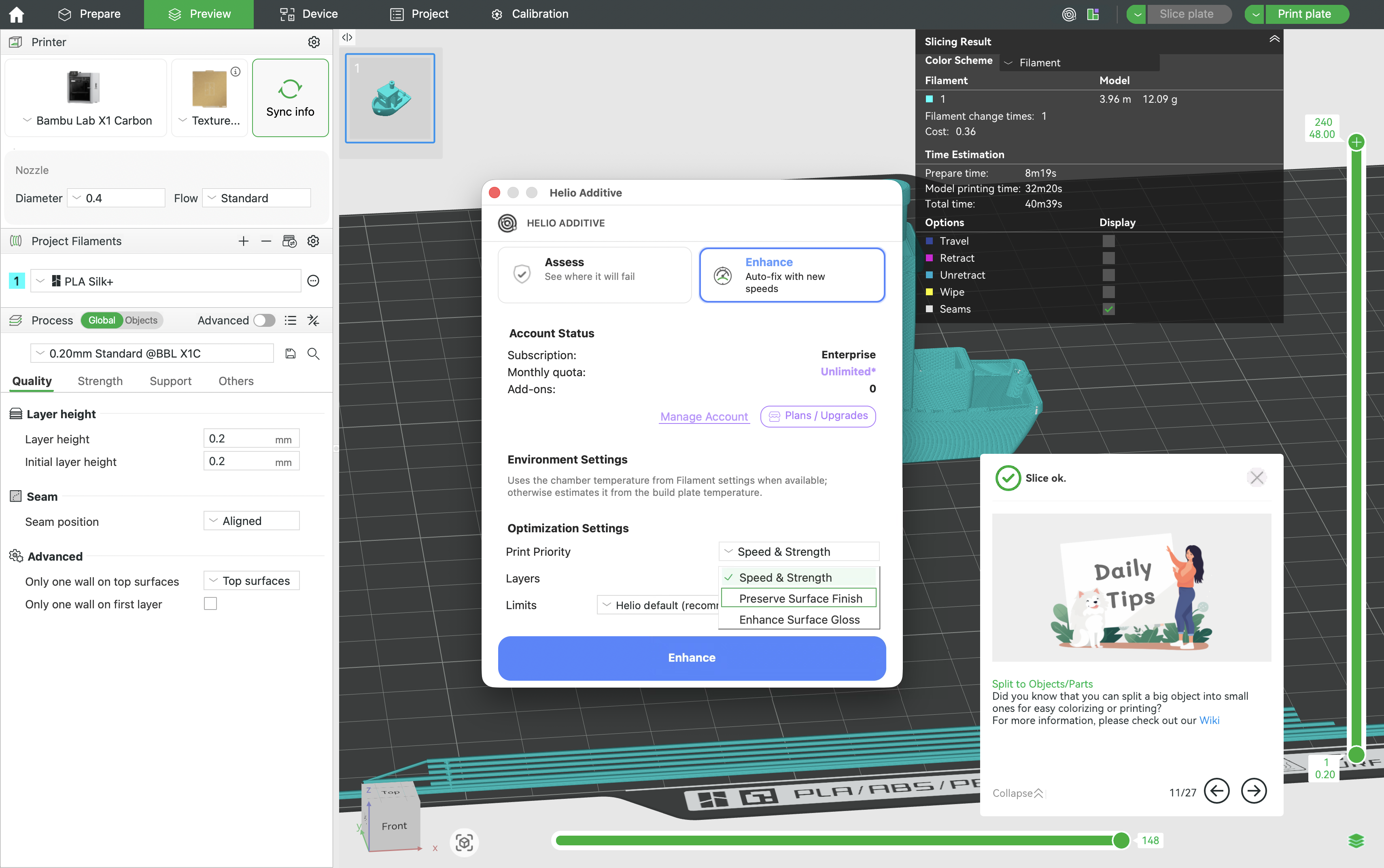
Choose What Matters Most: Speed, Strength, or Surface Quality
Helio now lets you Enhance prints based on your actual goal, instead of forcing compromises.
- Speed & Strength – Maximize throughput and mechanical performance
- Preserve Surface Finish – Improve reliability without degrading visual quality
- High-Gloss Optimization (New) – Achieve a consistent, premium gloss on silk and glossy materials
One part. One priority. Enhanced exactly the way you want.